


Eclipse provides basic classical functionality to create a new transport and to write in an existing transport. In addition to classical version history, Eclipse also offers “Local History” for a locally created Program/Class/Function module.
Let’s make this blog short and sweet…
Change Package in Eclipse ADT:
Just right-click on any Object and use “Change Package Assignment” option.
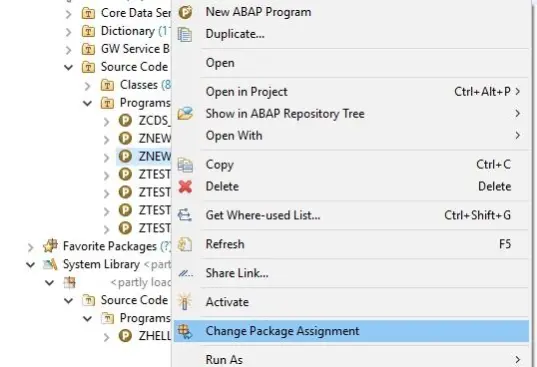
On selecting this option, the developer is offered to select the Package.
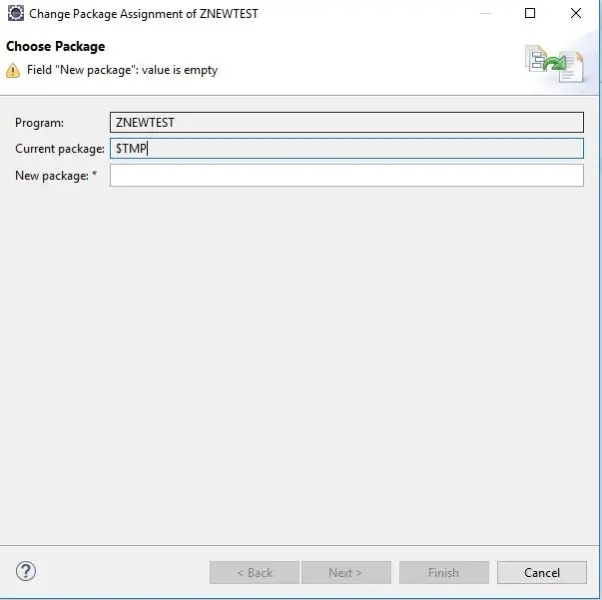
As a developer, you may like to enter a Z-package in this dialog box. On entering New Package, Click Next.
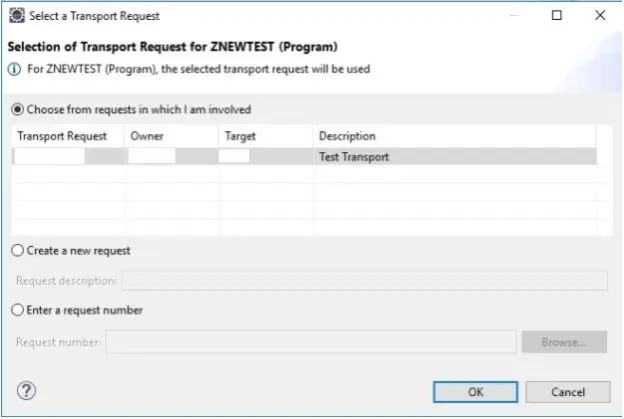
There are three options offered in “Select a Transport Request” dialog.
- Choose from the request in which I am involved: With this option, all non-released Transport request for the current user, appear here. The developer should be able to select the right transport where s/he wants to record changes. Selecting the request and clicking OK records the changes in the selected transport request.
- Create a new request: With this option, Developer is able to create a new Transport Request along with the Request Description.
- Enter a request number: With this last option, Developer can browse for Transport Requests and select one of them. Alternatively, Developer can enter a request number in textbox manually also. On entering valid Request number and clicking OK records the changes in provided request number.
On selection of a transport and clicking OK, Change package Assignment dialog appears.
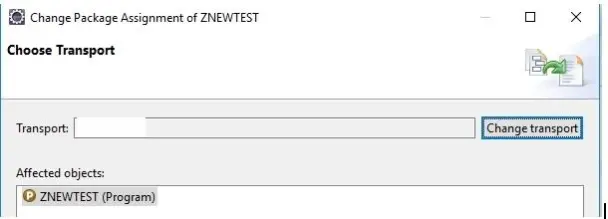
On Clicking OK and proceeding, changes are recorded in Transport.
Check Change History in Eclipse ADT:
Let’s see how to check Change History of a Program/Include/Class/FM.
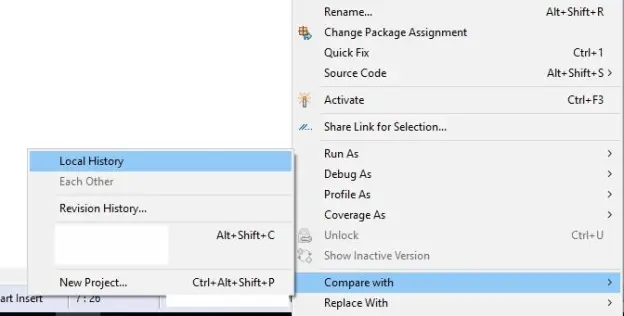
Open the Program/Include/Class/FM > Right click on Editor > Compare with > Revision History
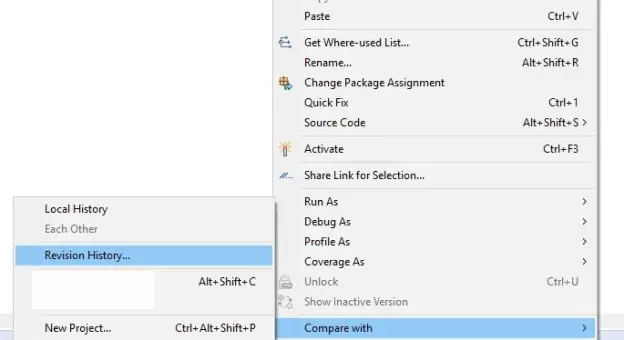
Eclipse offers below the screen with Date, Author, Transport request number, and Description.

It is also possible to compare two versions of same code in this view. Just right-click on any Transport request and comparison with other versions can be selected.
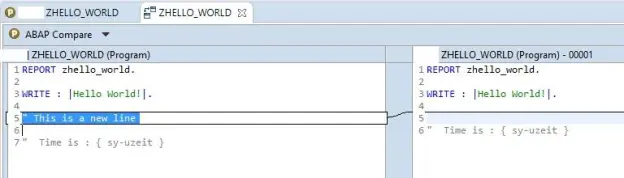
Eclipse ADT also offers to see and compare local changes done in Eclipse. This is a powerful feature where a developer can’t lose his past code accidentally even if the code was local and/or not recorded in a version separately. The only condition is: Changes must be done on the same system, same developer, and same workspace.
The result of checking Local history can be something like below:
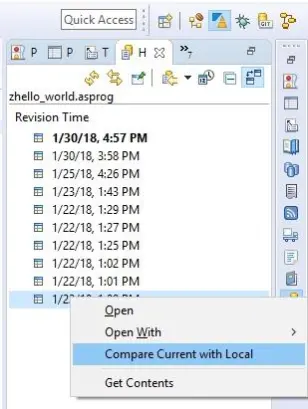
Here Developer can compare different versions of the code!