



Eclipse has its own way to organize Editor, views, Menu, Buttons, and perspectives. It is 180° change than classical ABAP workbench. Placement and size of Editor and views are generally flexible to facilitate developer to organize things.
Refer below screenshot and also open your Eclipse and check by yourself features mentioned in the screenshot. You may notice few changes w.r.t. this screenshot and that may be because Eclipse allows repositioning tools/views. Try by yourself dragging and dropping views e.g. from bottom to right border side and vice versa.
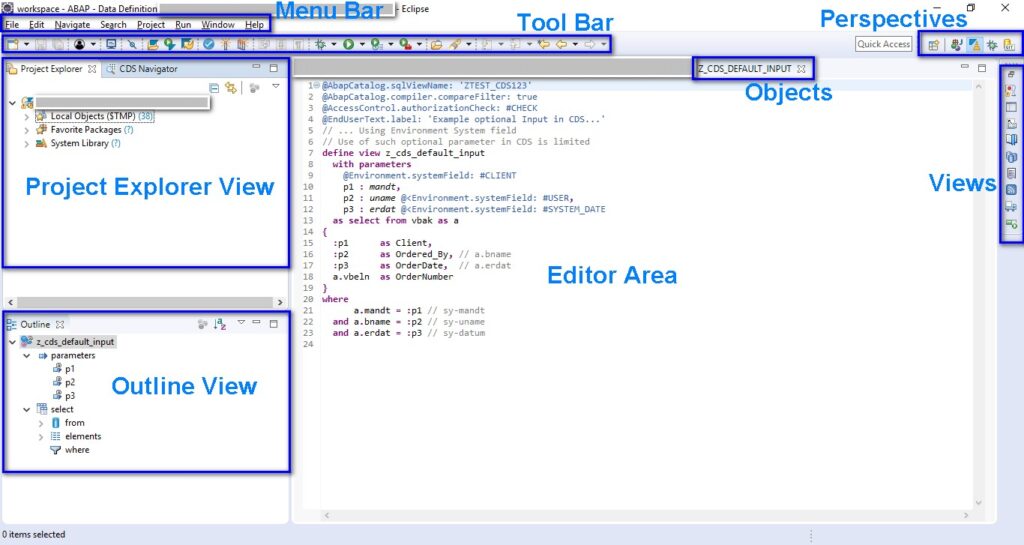
Project Explorer View
By default, Project Explorer view is available in the top of left side frame(as given in top Eclipse Organization diagram). Every project added in Eclipse has a Parent node in Project Explorer view.
Each ABAP project is a unique combination of SAP system, Client, and User ID(let’s say default language is EN always). This means that a User with same User ID in two different clients of the same system will have to create two ABAP projects in project explorer view to access respective system.
Navigation is also a bit different which is mainly done using Project Explorer View. Generally, there are three nodes under an ABAP project(depends on usage):
- Local Objects($TMP): All the local objects created by the user are under this node. It also shows the number of local objects created. Try expanding this and you can easily figure out that Objects inside this node are already categorized depends on their Object type. e.g. All Classes will be in Source Code Library > Class node and all Programs will be in Source Code Library > Program node.
- Favorite Packages: Developers generally work under given custom package. It is a good idea to add frequently used packages in Favorite Packages. To add a Package as Favorite, Right click on Favorite Packages > Add a Package > Search and Select > Press OK.
- System Library: This node has pretty everything that is not custom SAP. It is very easy to get lost if you try to navigate through this node while trying to find an Object if you are already not aware of object’s location(package).
Tip: If you need to open any SAP Object(e.g. Program, Function Module, Class, DDIC Table etc.), the best way is to use the shortcut Ctrl + Shift + A. On using this shortcut, a dialog opens up and you need to start typing the object name(wildcard * can be used) and auto assist helps with the patterned match. We are going to discuss some more handy shortcuts in later part of this Tutorial. If you are curious right now to know more, feel free to jump and go to Index(button on top of this page) > Eclipse ABAP Shortcuts!
Some more features of Project Explorer view:
- Link with Editor: This is a button on the top right side of Project Explorer view. This is a useful button at times. If the main editor opens an object with “Ctrl + Shift + A” shortcut(or any other way), the project explorer view doesn’t point to that object and Editor remains out of sync with Project Explorer. Turing this toggle button on keeps Editor and Project Explorer in sync.
- Focus on Active Task: This is also a button sitting just next to “Link with Editor” button. It is possible to create “Tasks” in Eclipse. On clicking this button, focus immediately transfers to active task.
Perspective/Editors/Views
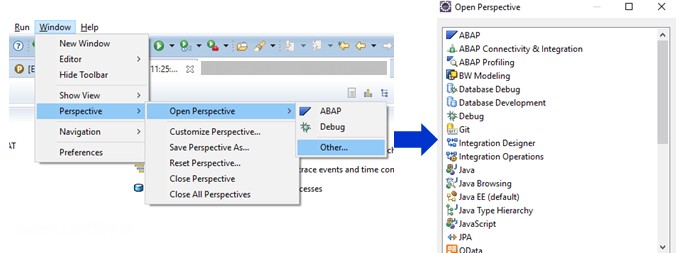
- Perspective: Eclipse comes loaded with a variety of inbuilt tools and more can be downloaded with Help menu > Install Software option in a pretty same way we installed ABAP ADT in the earlier part of this Tutorial. Every tool has its dedicated Editor and set of views it works with for accomplish required tasks. It is important that right perspective should be opened to do particular work. e.g. Java development has a different perspective than ABAP development. Open a perspective like this: